
 WhatsApp
 Telegram
918Kiss App Tutorial & Troubleshooting Guide
We built this guide for users who want a clean, reliable way to set up and use the 918Kiss app, and for anyone dealing with common issues like 918Kiss APK installation failed, app not opening, crashing, stuck loading, or login problems.
This tutorial is written to be practical — the kind of guide we’d want if we were installing on a new phone, fixing an error, or helping a friend troubleshoot.
What we cover
- How to install 918Kiss APK on Android (correct permission settings)
- How to install 918Kiss on iOS (iPhone/iPad setup basics)
- Fixes for 918Kiss app not opening, black screen, crashing, loading stuck
- Fixes for 918Kiss login issue / cannot log in
- A getting-started walkthrough: how to play 918Kiss and navigate the app
- Compatibility, updates, and safe reinstall steps
How to Install 918Kiss App Properly
A correct install prevents 80% of the problems users run into later. The steps differ between Android and iOS, so please follow the right section for your device.
How to Install 918Kiss APK on Android
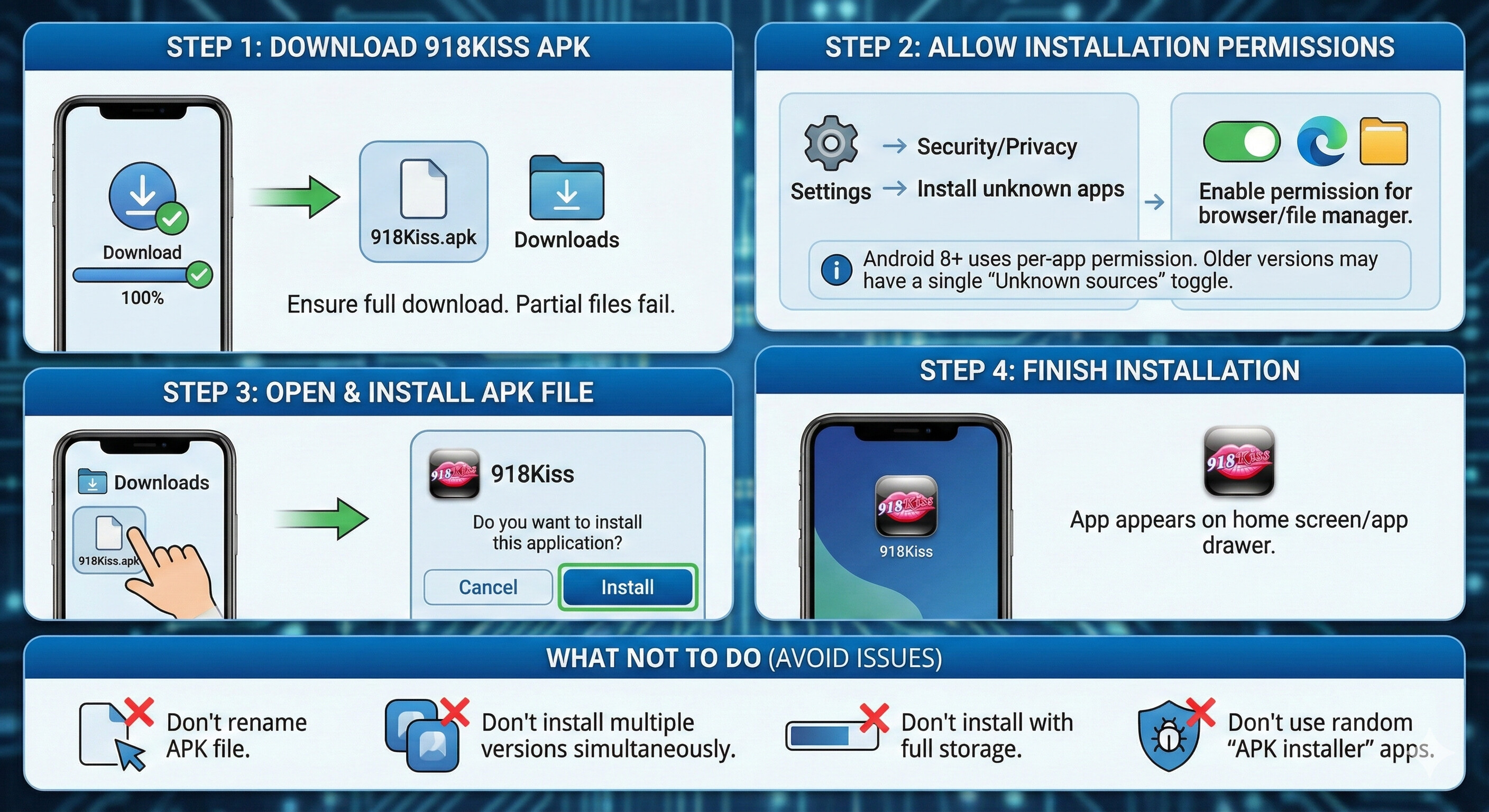
Android installs the 918Kiss APK manually (APK files are app installers). If installation fails, it’s usually due to permissions or an incomplete download.
Step-by-step Android installation
- Download the 918Kiss APK
- Make sure the download completes fully (partial APK files often fail).
- Allow APK installation permissions
- Go to Settings → Security / Privacy
- Find Install unknown apps (or Unknown sources depending on Android version)
- Enable permission for the app you used to download/open the file (for example: your browser or file manager).
- Open the APK file
- Typically located in Downloads
- Tap the APK file → Install
- Finish installation
- After installation, the app appears on your home screen or app drawer.
If you don’t see “Unknown sources”
Android wording varies:
- Android 8+ often uses “Install unknown apps” per-app permission.
- Older Android versions may have a single “Unknown sources” toggle.
What not to do (prevents most Android install issues)
- Don’t rename the APK file before installing (can confuse file handlers on some devices).
- Don’t install multiple APK versions at the same time.
- Don’t install while storage is almost full — it increases “App not installed” errors.
Don’t use random “APK installer” apps that inject ads or modify installs.
How to Install 918Kiss on iOS (iPhone & iPad)
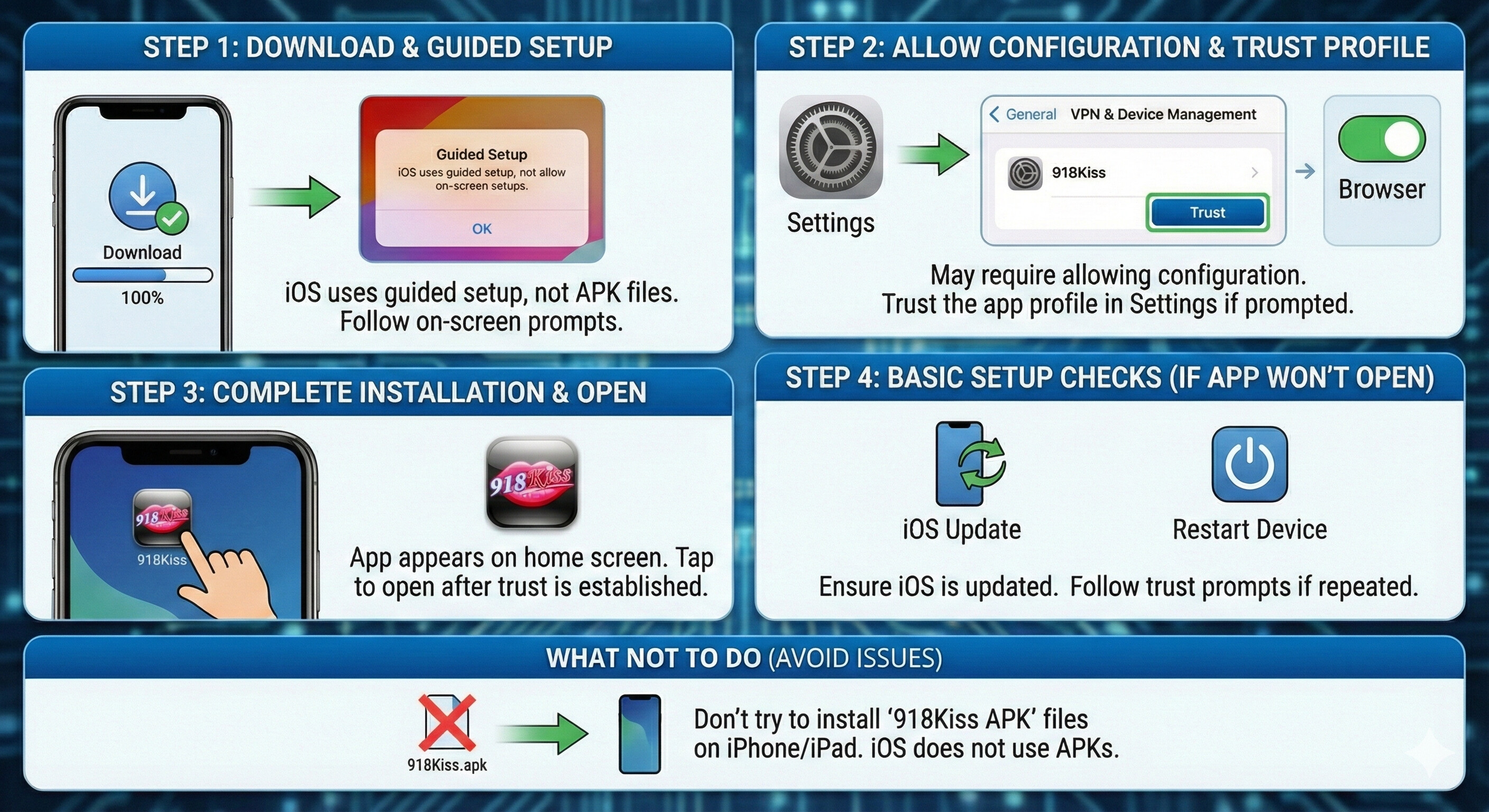
iOS does not use APK files. If you see “918Kiss APK for iPhone,” that’s automatically incorrect — iPhone/iPad installs follow iOS methods.
Because iOS installation methods can vary (depending on the distribution method and iOS version), we focus on what stays consistently true:
What to expect during iOS installation
- You may be asked to follow a guided setup
- Some installations require allowing a configuration step
- In certain cases, iOS may require you to trust the app (or its profile) in Settings before it opens
Basic iOS setup checks (when the app won’t open)
- Make sure iOS is updated (older iOS versions can cause app launch issues)
- Restart the device after installation
- If prompted by iOS about trust/verification, follow the on-screen instructions carefully
Common 918Kiss Installation Problems and How We Fix Them
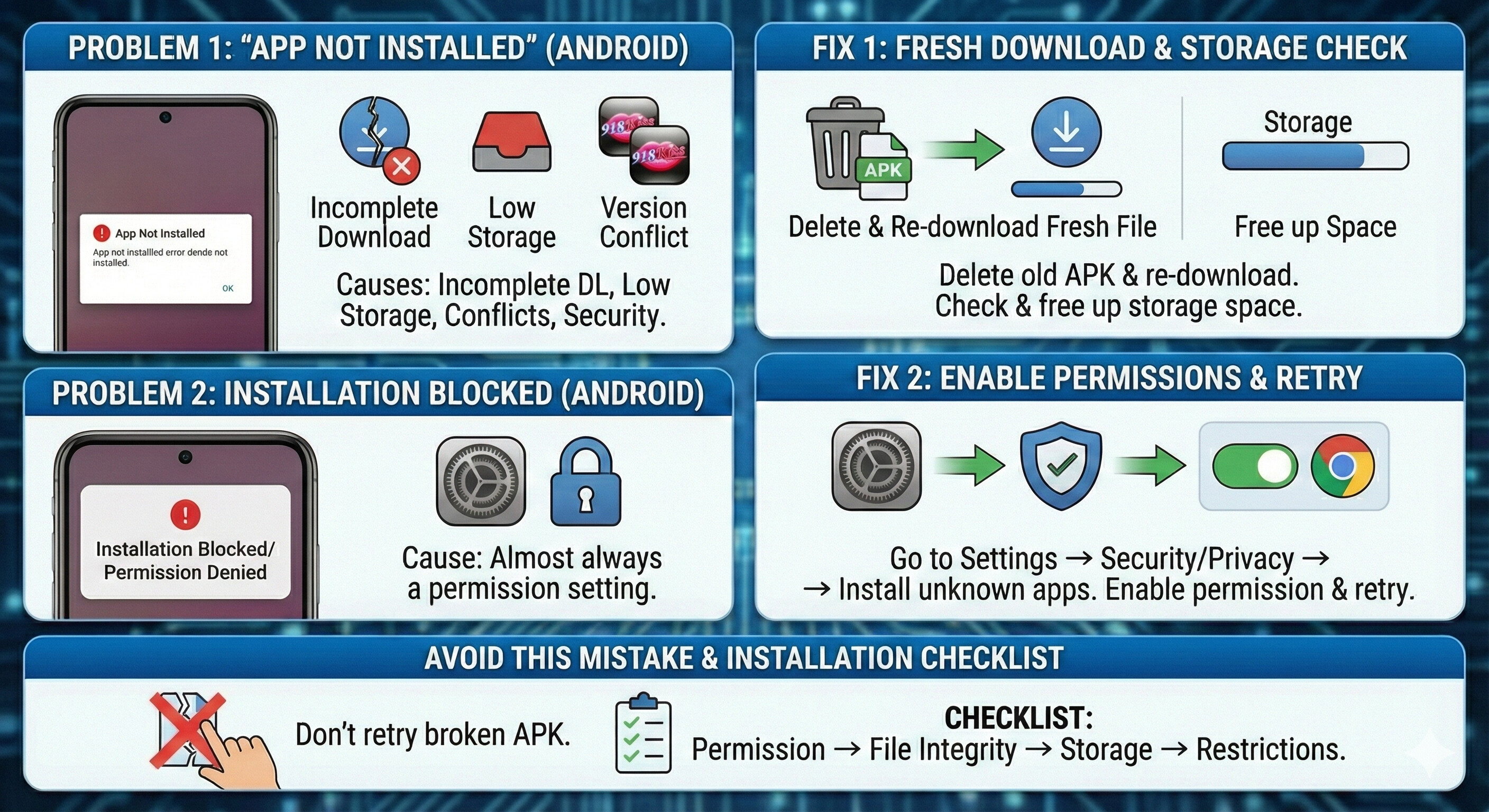
When installation fails, we treat it like a checklist: permission → file integrity → storage → device restrictions.
Problem 1: “App Not Installed” / “Installation Failed” (Android)
Most common causes
- The APK download was incomplete or corrupted
- Storage is too low
- A previous version conflicts with the new install
- Android security restrictions blocked the installer
Fix (best order)
- Delete the downloaded APK and download again (fresh file)
- Check storage (free up space if needed)
- Remove older versions of the app (if installed), then install again
- Re-check Install Unknown Apps permission, then retry
Avoid this mistake: repeatedly tapping install on the same broken APK file. If the file is damaged, it will fail every time.
Problem 2: Installation Blocked / Permission Denied (Android)
This is almost always a permission setting.
Fix
- Settings → Security/Privacy → Install unknown apps
- Enable permission for the app opening the APK (browser/file manager)
- Retry installation
How to Fix 918Kiss App Not Opening, Crashing, or Stuck Loading
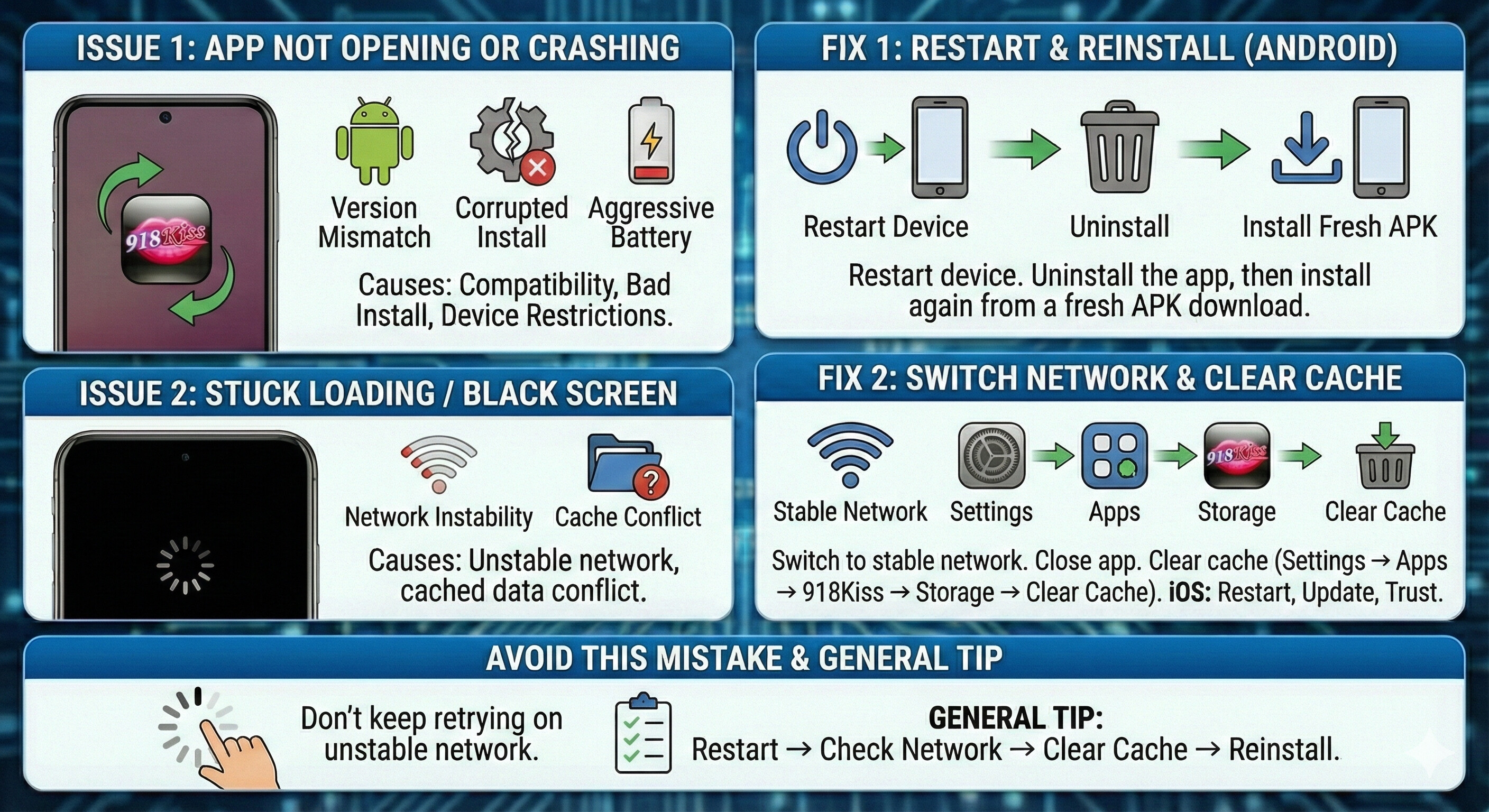
If the app installs but won’t run properly, the cause usually falls into one of these buckets:
- Version mismatch (older device OS)
- Corrupted install (bad install session)
- Cache/data conflict (especially after updates)
- Network instability
Issue 1: 918Kiss App Not Opening (opens then closes immediately)
Why this happens
- The app is not compatible with your current Android version
- The install didn’t complete correctly
- Device restrictions or aggressive battery settings terminate it instantly
Fix steps
- Restart the device
- Reinstall the app
- Uninstall the app
- Install again from a fresh APK download
- If it still closes:
- Check Android version compatibility (see Compatibility section below)
Issue 2: Black Screen / Stuck at Loading Screen
Why this happens
- The app is loading data but network is unstable
- Cached data from an older version conflicts with the current one
Fix steps (Android)
- Switch to a stable network (Wi-Fi or stable mobile data)
- Close the app completely, reopen
- Clear cache:
- Settings → Apps → 918Kiss → Storage → Clear Cache
- If still stuck:
- Uninstall and reinstall using the latest version
Fix steps (iOS)
- Restart the device
- Ensure iOS is updated
- If the app uses a trust/verification step, complete it properly
918Kiss Login Issues and How We Resolve Them
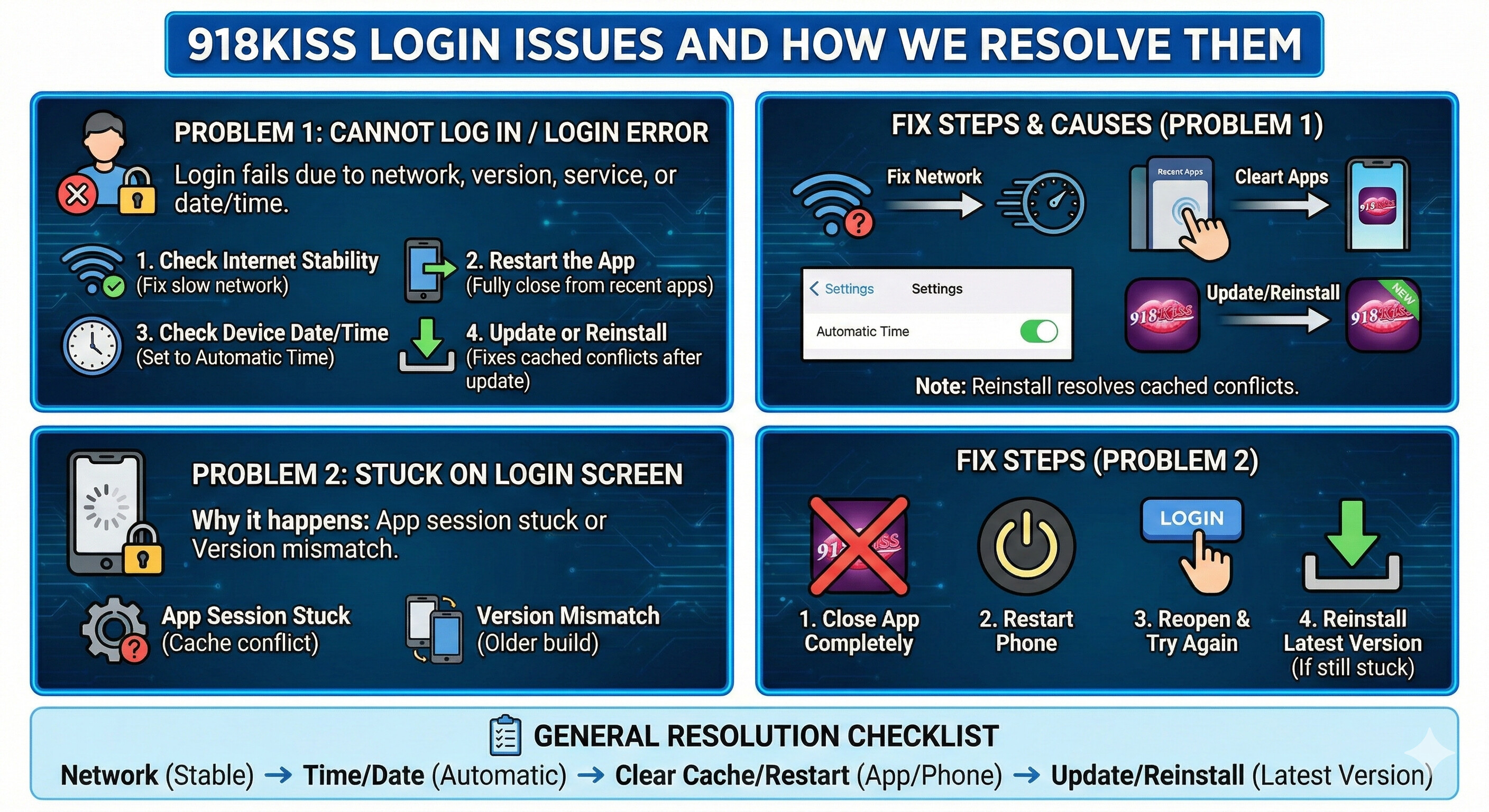
Login issues typically come from:
- network instability
- app version mismatch
- temporary service connectivity problems
- device time/date mismatch (surprisingly common)
We approach it in a clean order so you don’t waste time.
Problem 1: Cannot Log In / Login Error
Fix steps
- Check internet stability
- If pages and apps load slowly, fix network first
- Restart the app
- Fully close it (remove from recent apps) and reopen
- Check device date/time
- Set to automatic time if available (wrong time can break secure sessions)
- Update or reinstall
- If login fails after an app update, reinstall usually resolves cached conflicts
Problem 2: Stuck on Login Screen
Why this happens
- App session gets stuck (cache conflict)
- Version mismatch (older build cannot connect properly)
Fix steps
- Close the app completely
- Restart phone
- Reopen and try again
- If still stuck, reinstall the latest version
How to Play 918Kiss App (Getting Started)
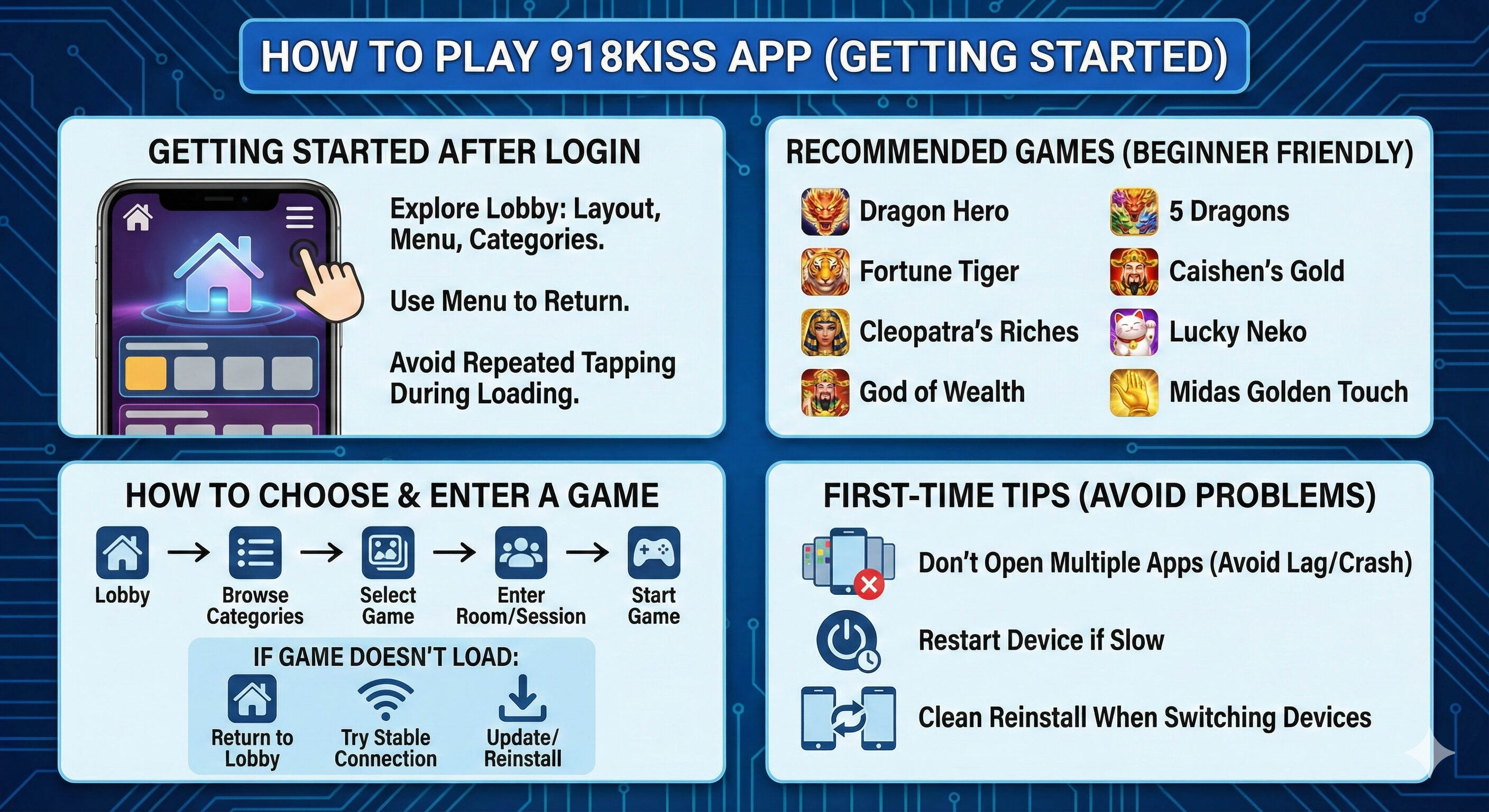
We keep this section simple and practical: how to navigate, how to enter a game area, and how to avoid common beginner confusion after login.
Note:918Kiss game that first time user can try - Dragon Hero, Fortune Tiger, 5 Dragons, Caishen’s Gold, Cleopatra’s Riches, Lucky Neko, God of Wealth, Midas Golden Touch
Getting Started After Login
After you log in, you’ll typically see:
- a home screen / lobby area
- a menu or navigation icons
- sections for browsing game categories
What we recommend
- Take a moment to explore the lobby layout
- Use the menu to return to the main screen if you enter the wrong area
- Avoid tapping repeatedly during loading — it can freeze on slower devices
How to Choose and Enter a Game
A reliable basic flow is:
- Browse game categories in the lobby
- Select a game
- Enter the game room/session
- Follow in-game prompts to start
If a game doesn’t load:
- return to the lobby
- try again on a stable connection
- update/reinstall if loading repeatedly fails
First-Time Tips We Use to Avoid Problems
- Don’t open multiple apps heavily in the background (older devices may lag or crash)
- If the app feels slow, restart the device and try again
- If you switch devices, do a clean reinstall rather than copying files manually
918Kiss Compatibility and System Requirements
Compatibility questions usually come from users with:
- older Android devices
- older iOS versions
- phones with restricted storage/performance
- devices with aggressive battery “optimization”
Android Compatibility
In general, the app works on most Android devices, but performance depends on:
- Android version
- available storage
- memory (RAM)
- background app load
If you see frequent crashing or black screen
- it’s often an older Android version or limited device resources
- reinstalling can help, but compatibility limits can still apply
iOS Compatibility (iPhone & iPad)
iOS installation and stability depends heavily on:
- iOS version
- whether any verification/trust step is completed correctly
If the app won’t open on iOS
- restart the device
- check iOS updates
- complete any required trust/verification steps
Safety and Authenticity Guide
We keep this section practical. Most “safety” issues come from installing modified files from unknown sources.
How we stay safe when installing apps manually
- We only use trusted sources
- We avoid “modded” or “cracked” versions
- We don’t grant unnecessary permissions
- We keep the app updated
What we never recommend
- Installing multiple versions at once
- Using unknown “APK installer” tools
- Downloading from suspicious popups or forced redirects
How to Update or Reinstall 918Kiss App
Updates and reinstalls solve many issues, but they should be done correctly.
How to Update the App
When you update:
- you’re replacing an older build
- new versions may fix stability, loading, and login issues
What we recommend
- Use the latest available version
- Don’t keep multiple versions installed
How to Reinstall 918Kiss APK (Clean Reinstall Method)
A clean reinstall is the best fix when:
- the app won’t open
- the app crashes after an update
- login gets stuck repeatedly
- installation becomes inconsistent
Clean reinstall steps
- Uninstall the app
- Restart the device (this clears leftover temporary processes)
- Download a fresh installer file (new APK, not an old saved one)
- Install again and open the app
Frequently Asked Questions
Can we install the app on a new phone?
What if the app suddenly stops working?
Start with:
- restart device
- reopen the app
- update or reinstall if needed
Why does reinstalling fix so many problems?
Reinstalling clears:
- corrupted install sessions
- cached conflicts after updates
- app data issues that cause crashes or loading loops
What should we do first: update or reinstall?
- If the app is working but glitchy → update first
- If the app won’t open / crashes immediately → reinstall
- If installation fails → redownload + reinstall with correct permission settings
Final Checklist We Use Before Calling It “Fixed”
If something goes wrong, we run this quick checklist:
- ✅ Stable internet connection
- ✅ Correct install permission (Android: install unknown apps)
- ✅ Enough storage space
- ✅ Latest version installed
- ✅ Clean reinstall if the app won’t open
- ✅ Device time/date set correctly
If you follow the steps above, most 918Kiss installation, loading, and login issues can be solved without guesswork.